

[August 2026 edition]
Turning a Site into a Desktop App with nimino-pack
Published: Aug 18, 2026
Reading time: ~10 min
Nimino is a foundation for building desktop apps with a web UI in Nim. We announced that development had started in an earlier article. This article covers the steps for v0.2.9, the latest release.
Here we use nimino-pack, the tool in that project that takes a URL and turns the site into an app that opens in its own window. No browser tabs, no address bar, just a dedicated app.
We run it locally first, then build an installer for distribution.
What you need
We confirmed these steps in the following environment.
| Item | Version |
|---|---|
| Nimino | v0.2.9 |
| Nim / Nimble | 2.2.10 / 0.22.2 |
| Environment running nimino-pack | Debian 13 |
| WebView (Linux) | GTK 4.18.6 / WebKitGTK 2.52.5 |
| WebView (Windows) | WebView2 Evergreen Runtime 151.0.4129.86 |
A Nimino app uses the operating system’s WebView, so the machine that runs it always needs one. How you install it differs by OS.
On Linux, install GTK 4 and WebKitGTK 6.0. On Debian 13 and Ubuntu, that is these two packages.
sudo apt install libgtk-4-1 libwebkitgtk-6.0-4On Fedora they are gtk4 and webkitgtk6.0. On CentOS Stream 10 and RHEL 10, webkitgtk6.0 lives in EPEL, so enable EPEL first. EL9 does not carry WebKitGTK 6.0 and is out of scope.
On Windows, the WebView2 Evergreen Runtime ships with Windows 11. On machines without it, the generated installer checks at run time and fetches it.
On macOS, Nimino uses Cocoa and WKWebView, and .app and .dmg generation is implemented. Signing and notarization need Apple developer credentials, though, and Gatekeeper blocks unsigned builds. We do not cover that here. If macOS is all you have, the steps below will not work as written.
Building distributable packages also needs the generator for each format: dpkg-deb, desktop-file-validate, makensis, and so on. When one is missing, nimino-pack says which one and stops.
nimino package-linux: Linux package generation requires desktop-file-validate in the Docker imageRather than installing each of them, you can use the published container image, which bundles nimino together with the generators. We use it in the distribution section.
Trying a finished app first
Before building an app from your own URL, take a look at a finished one. Releases has installers for YouTube, Gmail, and Google Analytics: .deb and .rpm for Linux, -setup.exe and .msi for Windows.
On Debian or Ubuntu, download the .deb and install it. Each release ships SHA256SUMS, so download that too and you can verify what you got.
The dependencies are declared, so apt pulls in GTK and WebKitGTK.
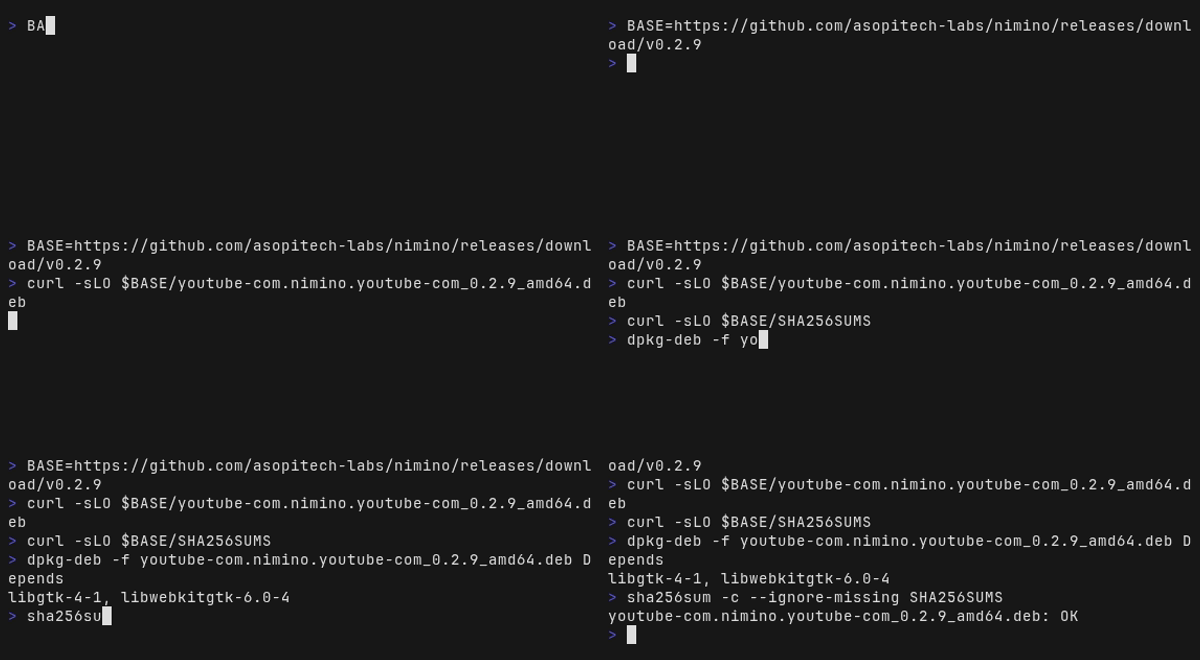
Install the downloaded .deb with apt.
sudo apt install ./youtube-com.nimino.youtube-com_0.2.9_amd64.debAfter installing, YouTube appears in the application menu. Launching it opens YouTube in a window with no tabs and no address bar. The contents live in /opt/nimino/com.nimino.youtube-com/, laid out the same way as the bundle we are about to build.
The Windows -setup.exe installs without administrator rights and registers itself in the Start menu.
From here on, we build the same thing from a URL of your choosing.
Installing
Install by package name. nimino-pack is registered in the official Nim package index.
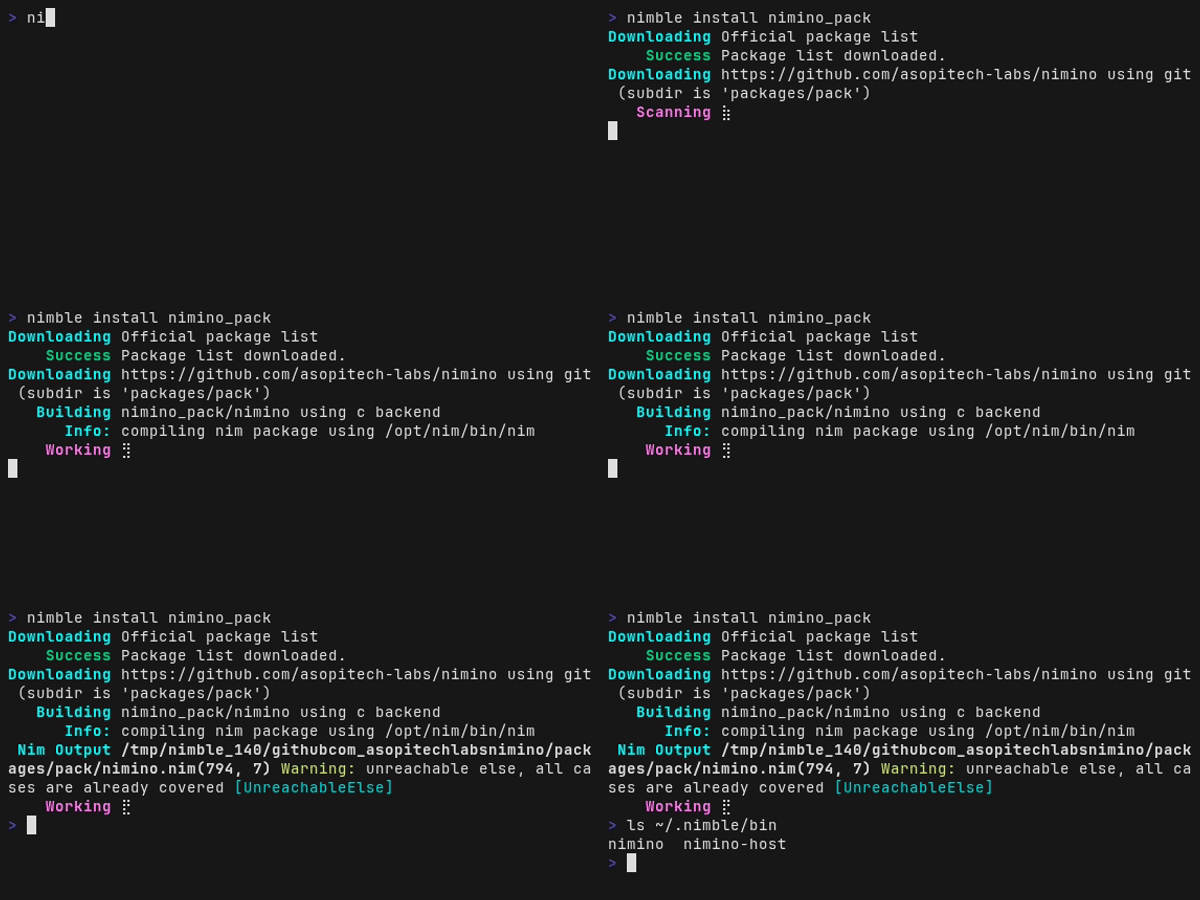
The nimino command arrives together with nimino-host. The apps we build later bundle that host as their executable.
nimino lands in ~/.nimble/bin. If that directory is on your PATH, you can call it directly.
export PATH="$HOME/.nimble/bin:$PATH"If you would rather not install Nim, there is a published container image. It carries the nimino command along with the generators needed to build distributable packages.
docker run --rm --user "$(id -u):$(id -g)" -v "$PWD:/work" \
  ghcr.io/asopitech-labs/nimino:latest \
  pack https://asopi.tech --name AsopiTech --out /work/dist/app
--user passes your own user ID. That decides who owns the files the container writes, so without it you end up with files in your directory that you cannot delete.
The image is 197MB and carries neither the Nim compiler nor a cross-compilation toolchain. It holds only what running nimino needs.
You can also clone the repository and enter the development container. That one brings the Nim compiler as well, so use it when you want to modify Nimino itself.
git clone https://github.com/asopitech-labs/nimino.git
cd nimino
make shell
This container mounts the repository at /workspace and runs as you. Files you build inside it belong to you on the host as well, so removing them does not need sudo.
--help lists the subcommands.
pack builds the app, and package-linux and its siblings turn that into distributable packages. The pack line is long because window size, user agent, proxy, dark mode, system tray, and the rest can all be given on the command line.
Running it locally
Here we turn asopi.tech into an app. Pass a URL, a name, and an output directory, and twelve files appear in that directory.
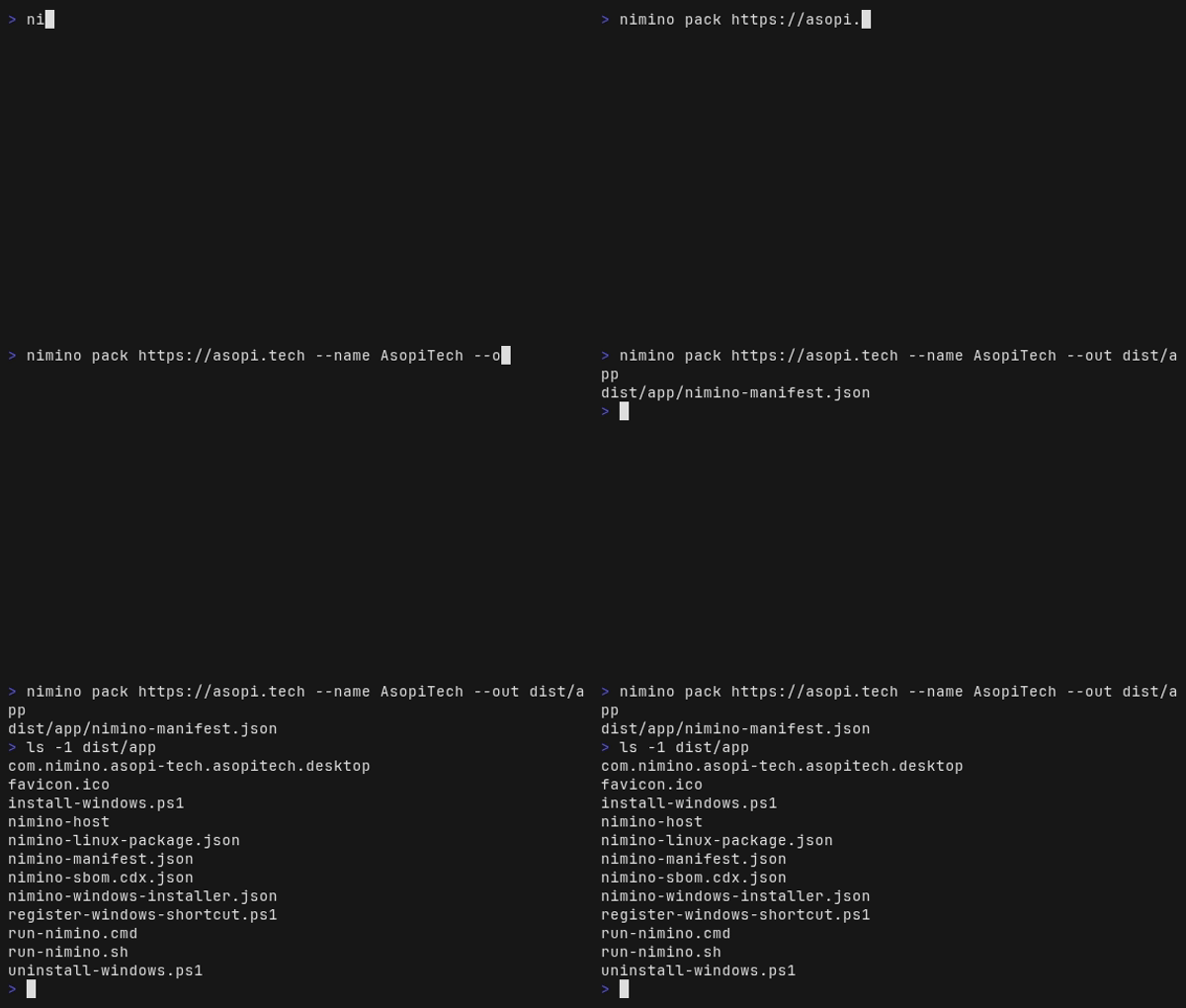
We only specified three things: the URL, the name, and the output directory. Everything else is derived from the URL. The nimino-host executable is bundled automatically from what the install put in place.
Running run-nimino.sh opens asopi.tech in its own window.
./dist/app/run-nimino.shThe launch script is three lines and does nothing but hand the host a path to the manifest. There is no site-specific logic anywhere.
#!/bin/sh
# Generated by nimino-pack.
exec "$(dirname "$0")/nimino-host" --manifest "$(dirname "$0")/nimino-manifest.json" "$@"
Everything the app does is written in nimino-manifest.json. You can change the settings by editing that file, without repackaging.
What got generated
The head of the manifest shows what the URL produced.
The host name produces a reverse-DNS app ID, a description, window defaults, and package metadata. You do not write a definition file per site.
favicon.ico is what nimino-pack fetched from https://<host>/favicon.ico because --icon was omitted. When the fetch fails, it warns and carries on, producing an app without an icon.
Changing the window settings
Window size and tray behavior can be given on the command line.
nimino pack https://asopi.tech --name AsopiTech --out dist/app \
  --width 1280 --height 900 --hide-on-close --show-system-tray
Once the options pile up, move them into TOML. Writing out the options above gives this.
name = "AsopiTech"
id = "com.nimino.asopi-tech"
url = "https://asopi.tech"

[window]
width = 1280
height = 900

[runtime]
show-system-tray = true
hide-on-close = true
Pass that file with --config and you get the same app as the command line above.
nimino pack --config app.toml --out dist/appEach value is validated: version against SemVer, homepage against HTTP(S) URLs, categories against the values Desktop Entry permits.
Pake JSON is read as-is too, so migrating from Pake does not mean rewriting your settings.
What happens when the settings are wrong
nimino-pack does not discard settings silently. It returns an exit code and stops. That is the premise for wiring it into CI, so here are three representative cases.
An option that does not exist prints usage and exits with code 2.
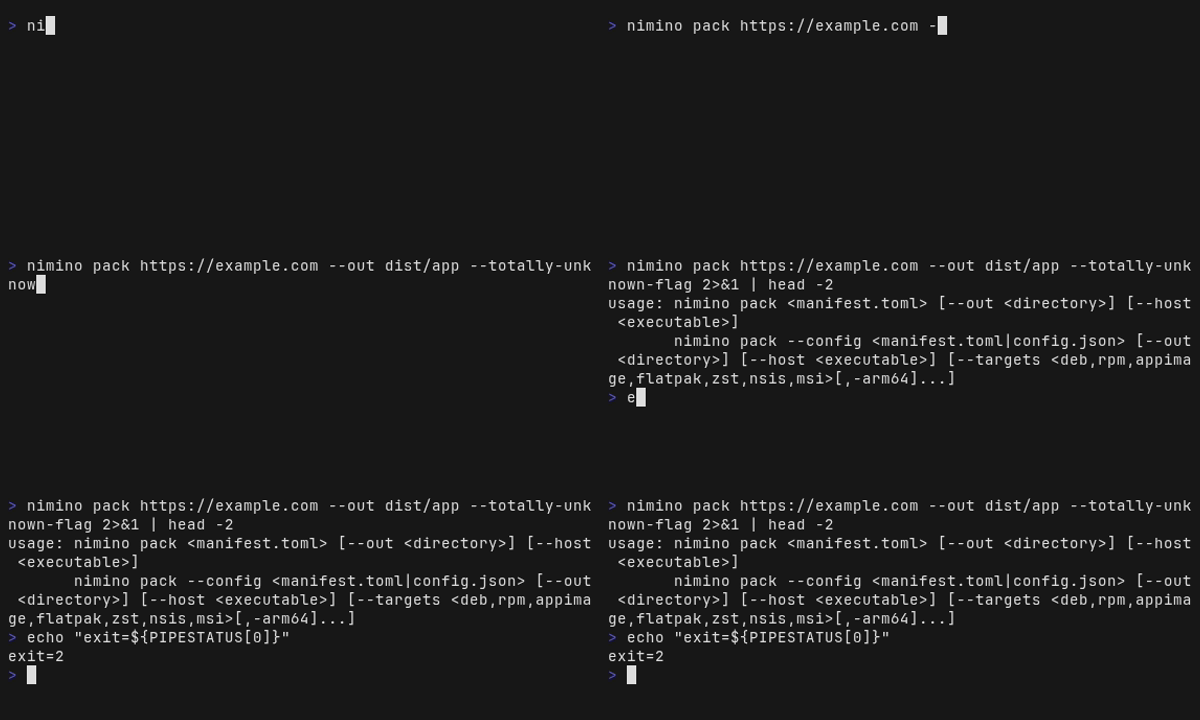
A local path that does not exist stops it as well. nimino-pack does not reinterpret it as a URL such as https://./no-such-dir.
nimino pack: local source path does not exist
exit=1
Running without --out builds no app and writes the validated manifest to standard output, which is useful when you only want to check the settings. For CI, specify the output directory with --out dist/app and add --json. The example below enters nimino pack https://example.com --out dist/app --json and receives the generated paths as one line of JSON.
Every manifest field and the option each one maps to is documented in the nimino-pack API reference.
Shipping it
So far we have been running things locally. To hand the app to other people, build an installer.
From here you need the generator for each format. Rather than installing them one by one, we use the container image from earlier, which carries both dpkg-deb and makensis.
Build the Linux .deb. --maintainer is required.
docker run --rm --user "$(id -u):$(id -g)" -v "$PWD:/work" \
  ghcr.io/asopitech-labs/nimino:latest \
  package-linux /work/dist/app --format deb --out /work/dist/packages \
  --arch amd64 --maintainer "Asopi <dev@example.invalid>"
If dpkg-deb and desktop-file-validate are installed on your host, you can call nimino directly instead of going through the container. The recording below runs inside the container, but the command is the same on a host.
nimino package-linux dist/app --format deb --out dist/packages \
  --arch amd64 --maintainer 'Asopi <dev@example.invalid>'
The .deb declares its dependencies on GTK and WebKitGTK.
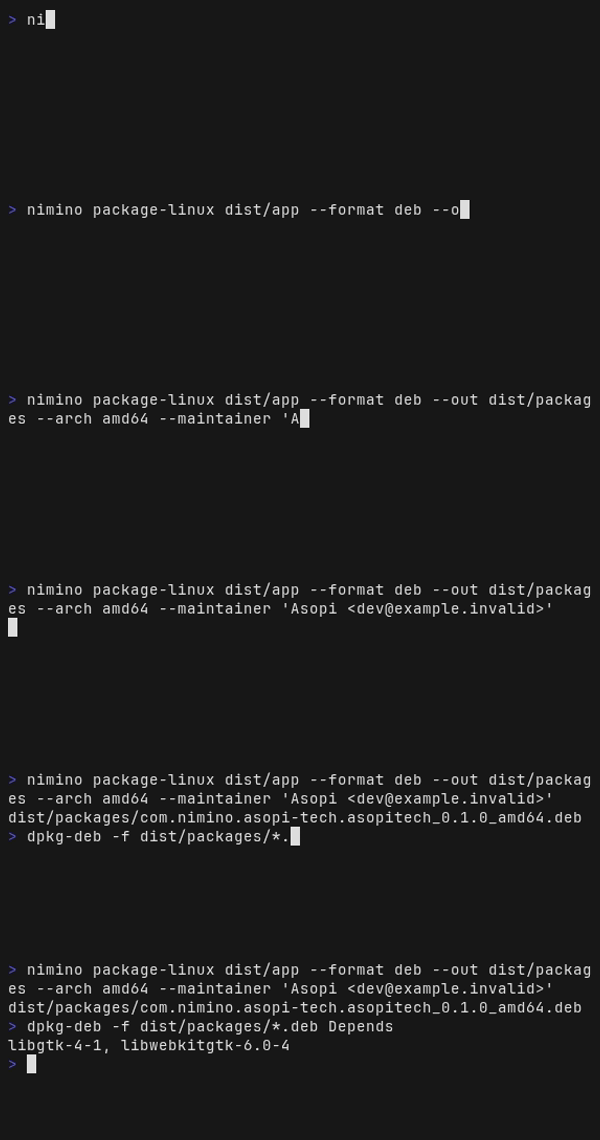
Install the finished .deb on your own machine. apt resolves the declared dependencies, so you do not install GTK and WebKitGTK yourself.
sudo apt install ./dist/packages/*.debThat gives you the same thing as the YouTube app we tried at the start of this article, built from a URL you chose.
Windows installers can be built on Linux too, because NSIS and wixl are Linux tools.
docker run --rm --user "$(id -u):$(id -g)" -v "$PWD:/work" \
  ghcr.io/asopitech-labs/nimino:latest \
  pack https://asopi.tech --name AsopiTech --out /work/dist/win --targets nsis
If makensis and unzip are on your host, you can call this directly as well. Pass --out an absolute path such as "$PWD/dist/win", though. NSIS resolves the paths written into its script from its own working directory, so a relative path leaves it unable to find the bundle.
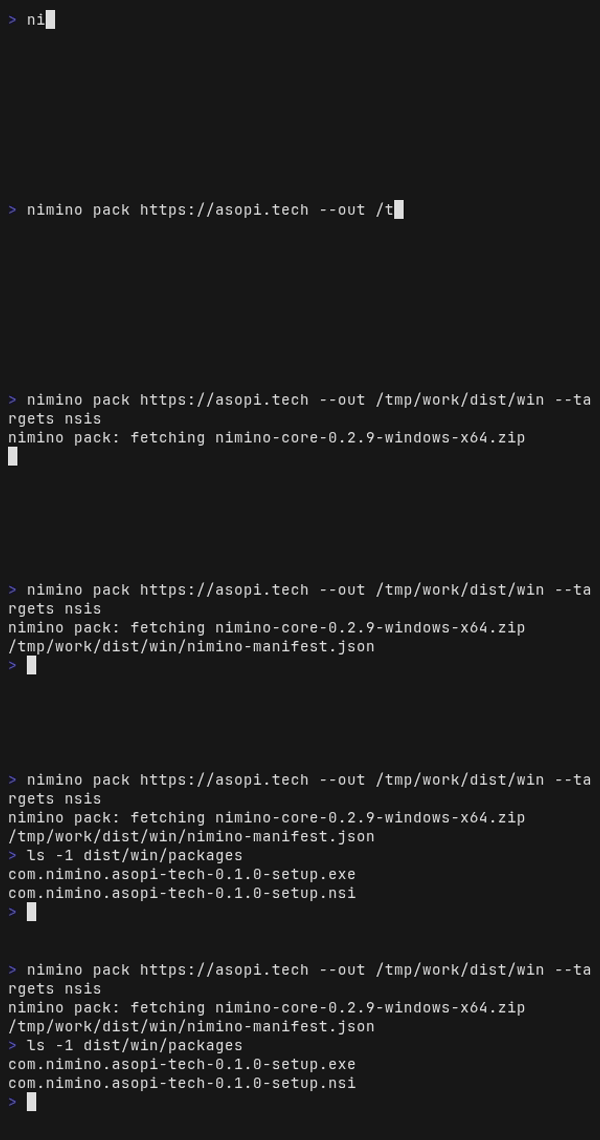
The Windows runtime is fetched automatically. Naming nsis or msi in --targets is what decides which platform’s host is required. What it fetches is cached, so later runs do not download it again.
Running the generated .exe on a Windows machine installs into %LOCALAPPDATA%\Nimino\<id> without administrator rights. It registers a Start menu shortcut and uninstalls from “Apps & features”.
Give package-linux and package-windows absolute paths for both the bundle and the output directory. With relative paths, the generated .nsi cannot resolve the bundle and the build fails.
Wrapping up
We built a desktop app from a single URL, changed how its window behaves, and produced installers for distribution.
To just try it, hand a URL to the published container image and run the generated run-nimino.sh. You install neither Nim nor the generators.
What you wrap is not limited to a service’s website. Wrap a browser game, a tool you open often, or an internal dashboard, and you launch it from an icon instead of hunting for a tab. Fix the window size and you stop resizing it every time.
We are building Nimino so that the sites you already use open in a light window. We would be glad to see you wrap whatever you like, for work or for fun.
Nimino has shipped 19 releases, going from v0.1.0 on 22 July 2026 to v0.2.9 in under a month. Steps can change between them, so pin a tag when you try this yourself. Every step in this article was run against v0.2.9.